> ## Documentation Index
> Fetch the complete documentation index at: https://cantonfoundation-jaspervdj-party-jwts.mintlify.site/llms.txt
> Use this file to discover all available pages before exploring further.

# Transfers

> Send, withdraw, accept, and reject transfer offers in Splice Portfolio.

All transfers are sent and received through your primary party. To act from a different party, first [switch your primary party](/sdks-tools/development-tools/splice-portfolio/switch-parties).

## Send a Transfer Offer

1. From the Dashboard or your primary party view, click **Transfer** in the top right corner of the screen.
   <img src="https://mintcdn.com/cantonfoundation-jaspervdj-party-jwts/kXbCcN4f77gOe2wj/images/SEND-A-TRANSFER-OFFER-(STEP-1A).png?fit=max&auto=format&n=kXbCcN4f77gOe2wj&q=85&s=8a1b0b6d18d16d65665e472197549169" alt="Transfer button on the Dashboard" width="1606" height="968" data-path="images/SEND-A-TRANSFER-OFFER-(STEP-1A).png" />
   <img src="https://mintcdn.com/cantonfoundation-jaspervdj-party-jwts/kXbCcN4f77gOe2wj/images/SEND-A-TRANSFER-OFFER-(STEP-1B).png?fit=max&auto=format&n=kXbCcN4f77gOe2wj&q=85&s=72535b928b478de2b33ba23734d2aa0b" alt="Transfer button on the primary party view" lightAlt="Transfer button on the primary party view" darkAlt="Transfer button on the primary party view" className="dark:hidden" width="1606" height="1202" data-path="images/SEND-A-TRANSFER-OFFER-(STEP-1B).png" />
   <img src="https://mintcdn.com/cantonfoundation-jaspervdj-party-jwts/kXbCcN4f77gOe2wj/images/SEND-A-TRANSFER-OFFER-(STEP-1B).png?fit=max&auto=format&n=kXbCcN4f77gOe2wj&q=85&s=72535b928b478de2b33ba23734d2aa0b" alt="Transfer button on the primary party view" lightAlt="Transfer button on the primary party view" darkAlt="Transfer button on the primary party view" className="hidden dark:block" width="1606" height="1202" data-path="images/SEND-A-TRANSFER-OFFER-(STEP-1B).png" />
2. Complete the transfer form and select **Make Transfer**.
   <img src="https://mintcdn.com/cantonfoundation-jaspervdj-party-jwts/kXbCcN4f77gOe2wj/images/SEND-A-TRANSFER-OFFER-(STEP-2)-1.png?fit=max&auto=format&n=kXbCcN4f77gOe2wj&q=85&s=975709182a5a407f4851728879408dc2" alt="Completed transfer form" lightAlt="Completed transfer form" darkAlt="Completed transfer form" width="1602" height="1202" data-path="images/SEND-A-TRANSFER-OFFER-(STEP-2)-1.png" />
   The **Description** field is where any memo tag or ID received from an exchange should be pasted.
   <Note>
     If the recipient party has pre-approved the asset being transferred, an offer expiration date is not required.
   </Note>
3. Review the transfer details on the confirmation screen.
   <img src="https://mintcdn.com/cantonfoundation-jaspervdj-party-jwts/kXbCcN4f77gOe2wj/images/SEND-A-TRANSFER-OFFER-(STEP-3).png?fit=max&auto=format&n=kXbCcN4f77gOe2wj&q=85&s=63f315ceb4958e4073b1a145af376381" alt="Transfer confirmation screen" lightAlt="Transfer confirmation screen" darkAlt="Transfer confirmation screen" className="dark:hidden" width="1602" height="1202" data-path="images/SEND-A-TRANSFER-OFFER-(STEP-3).png" />
   <img src="https://mintcdn.com/cantonfoundation-jaspervdj-party-jwts/kXbCcN4f77gOe2wj/images/SEND-A-TRANSFER-OFFER-(STEP-3).png?fit=max&auto=format&n=kXbCcN4f77gOe2wj&q=85&s=63f315ceb4958e4073b1a145af376381" alt="Transfer confirmation screen" lightAlt="Transfer confirmation screen" darkAlt="Transfer confirmation screen" className="hidden dark:block" width="1602" height="1202" data-path="images/SEND-A-TRANSFER-OFFER-(STEP-3).png" />
4. To complete the transfer, go to your CIP-103 compliant wallet to complete signing.
5. Verify the transfer in **Offers > Transfers**.
   <img src="https://mintcdn.com/cantonfoundation-jaspervdj-party-jwts/kXbCcN4f77gOe2wj/images/SEND-A-TRANSFER-OFFER-(STEP-5).png?fit=max&auto=format&n=kXbCcN4f77gOe2wj&q=85&s=d5640df654a70817fa0ffa866eb1b7ff" alt="Transfer listed with Sent status in the Offers page" lightAlt="Transfer listed with Sent status in the Offers page" darkAlt="Transfer listed with Sent status in the Offers page" className="dark:hidden" width="1606" height="961" data-path="images/SEND-A-TRANSFER-OFFER-(STEP-5).png" />
   <img src="https://mintcdn.com/cantonfoundation-jaspervdj-party-jwts/kXbCcN4f77gOe2wj/images/SEND-A-TRANSFER-OFFER-(STEP-5).png?fit=max&auto=format&n=kXbCcN4f77gOe2wj&q=85&s=d5640df654a70817fa0ffa866eb1b7ff" alt="Transfer listed with Sent status in the Offers page" lightAlt="Transfer listed with Sent status in the Offers page" darkAlt="Transfer listed with Sent status in the Offers page" className="hidden dark:block" width="1606" height="961" data-path="images/SEND-A-TRANSFER-OFFER-(STEP-5).png" />

<Note>
  If the recipient party has pre-approved the asset, the completed transfer appears in the transaction history as soon as it completes on-chain.
</Note>

## Withdraw a Transfer Offer

You can withdraw a transfer offer you have sent only if the recipient has not yet accepted it and has not set up pre-approval for the asset being transferred.

1. Go to **Offers > Transfers**.
2. Select the offer you want to withdraw.
   <img src="https://mintcdn.com/cantonfoundation-jaspervdj-party-jwts/kXbCcN4f77gOe2wj/images/WITHDRAW-A-TRANSFER-OFFER-(STEP-2).png?fit=max&auto=format&n=kXbCcN4f77gOe2wj&q=85&s=8a848bb2002b143b61710fc8037b1997" alt="Transfer offer selected in the Offers page" lightAlt="Transfer offer selected in the Offers page" darkAlt="Transfer offer selected in the Offers page" className="dark:hidden" width="1606" height="961" data-path="images/WITHDRAW-A-TRANSFER-OFFER-(STEP-2).png" />
   <img src="https://mintcdn.com/cantonfoundation-jaspervdj-party-jwts/kXbCcN4f77gOe2wj/images/WITHDRAW-A-TRANSFER-OFFER-(STEP-2).png?fit=max&auto=format&n=kXbCcN4f77gOe2wj&q=85&s=8a848bb2002b143b61710fc8037b1997" alt="Transfer offer selected in the Offers page" lightAlt="Transfer offer selected in the Offers page" darkAlt="Transfer offer selected in the Offers page" className="hidden dark:block" width="1606" height="961" data-path="images/WITHDRAW-A-TRANSFER-OFFER-(STEP-2).png" />
3. Click **Withdraw**.
   <img src="https://mintcdn.com/cantonfoundation-jaspervdj-party-jwts/kXbCcN4f77gOe2wj/images/WITHDRAW-A-TRANSFER-OFFER-(STEP-3).png?fit=max&auto=format&n=kXbCcN4f77gOe2wj&q=85&s=ceddfa57528b680f22b8c050afde240c" alt="Withdraw button on a transfer offer" lightAlt="Withdraw button on a transfer offer" darkAlt="Withdraw button on a transfer offer" className="dark:hidden" width="1602" height="961" data-path="images/WITHDRAW-A-TRANSFER-OFFER-(STEP-3).png" />
   <img src="https://mintcdn.com/cantonfoundation-jaspervdj-party-jwts/kXbCcN4f77gOe2wj/images/WITHDRAW-A-TRANSFER-OFFER-(STEP-3).png?fit=max&auto=format&n=kXbCcN4f77gOe2wj&q=85&s=ceddfa57528b680f22b8c050afde240c" alt="Withdraw button on a transfer offer" lightAlt="Withdraw button on a transfer offer" darkAlt="Withdraw button on a transfer offer" className="hidden dark:block" width="1602" height="961" data-path="images/WITHDRAW-A-TRANSFER-OFFER-(STEP-3).png" />
4. To complete this action, go to your CIP-103 wallet to complete signing.

## Accept or Reject a Transfer Offer

There are two ways to respond to a transfer offer.

1. From the Dashboard, select the transfer offer.
   <img src="https://mintcdn.com/cantonfoundation-jaspervdj-party-jwts/kXbCcN4f77gOe2wj/images/ACCEPT-OR-REJECT-A-TRANSFER-OFFER-(STEP-1A).png?fit=max&auto=format&n=kXbCcN4f77gOe2wj&q=85&s=a2e3ad39552c019160570bc340e1d4e2" alt="Incoming transfer offer on the Dashboard" width="1606" height="968" data-path="images/ACCEPT-OR-REJECT-A-TRANSFER-OFFER-(STEP-1A).png" />
   Or navigate to **Offers > Transfers** and select the transfer offer.
   <img src="https://mintcdn.com/cantonfoundation-jaspervdj-party-jwts/kXbCcN4f77gOe2wj/images/ACCEPT-OR-REJECT-A-TRANSFER-OFFER-(STEP-1B).png?fit=max&auto=format&n=kXbCcN4f77gOe2wj&q=85&s=39394f754396f86ca88af0f7f5692fb5" alt="Transfer offer detail in the Offers page" lightAlt="Transfer offer detail in the Offers page" darkAlt="Transfer offer detail in the Offers page" className="dark:hidden" width="1606" height="961" data-path="images/ACCEPT-OR-REJECT-A-TRANSFER-OFFER-(STEP-1B).png" />
   <img src="https://mintcdn.com/cantonfoundation-jaspervdj-party-jwts/kXbCcN4f77gOe2wj/images/ACCEPT-OR-REJECT-A-TRANSFER-OFFER-(STEP-1B).png?fit=max&auto=format&n=kXbCcN4f77gOe2wj&q=85&s=39394f754396f86ca88af0f7f5692fb5" alt="Transfer offer detail in the Offers page" lightAlt="Transfer offer detail in the Offers page" darkAlt="Transfer offer detail in the Offers page" className="hidden dark:block" width="1606" height="961" data-path="images/ACCEPT-OR-REJECT-A-TRANSFER-OFFER-(STEP-1B).png" />
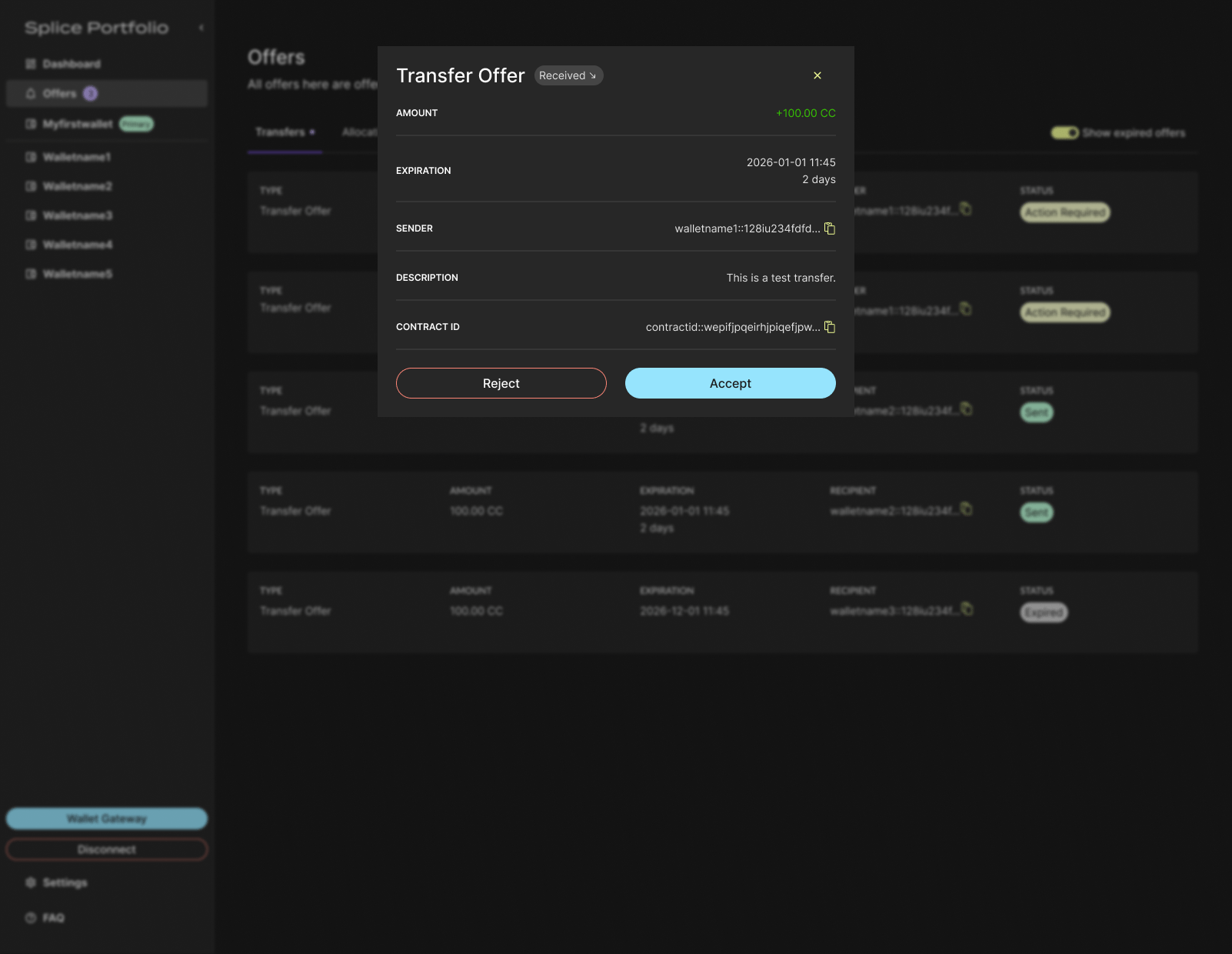
2. Click **Accept** or **Reject**.
   <img src="https://mintcdn.com/cantonfoundation-jaspervdj-party-jwts/GhZ2CNk0mFAnfXP5/images/sdks-tools/splice-portfolio/transfer-accept-reject.png?fit=max&auto=format&n=GhZ2CNk0mFAnfXP5&q=85&s=a9e5cbc3dd18e89c8a780cb45fde1029" alt="Accept and Reject buttons on a transfer offer" width="1602" height="1240" data-path="images/sdks-tools/splice-portfolio/transfer-accept-reject.png" />
3. To complete this action, go to your CIP-103 wallet to complete signing.
4. If accepted, review the completed transaction in your primary party's transaction history.
   <img src="https://mintcdn.com/cantonfoundation-jaspervdj-party-jwts/kXbCcN4f77gOe2wj/images/ACCEPT-OR-REJECT-A-TRANSFER-OFFER-(STEP-4).png?fit=max&auto=format&n=kXbCcN4f77gOe2wj&q=85&s=8d1ae18b064d6e8908fd0c4661c561ff" alt="Completed transfer in the transaction history" lightAlt="Completed transfer in the transaction history" darkAlt="Completed transfer in the transaction history" className="dark:hidden" width="1606" height="1202" data-path="images/ACCEPT-OR-REJECT-A-TRANSFER-OFFER-(STEP-4).png" />
   <img src="https://mintcdn.com/cantonfoundation-jaspervdj-party-jwts/kXbCcN4f77gOe2wj/images/ACCEPT-OR-REJECT-A-TRANSFER-OFFER-(STEP-4).png?fit=max&auto=format&n=kXbCcN4f77gOe2wj&q=85&s=8d1ae18b064d6e8908fd0c4661c561ff" alt="Completed transfer in the transaction history" lightAlt="Completed transfer in the transaction history" darkAlt="Completed transfer in the transaction history" className="hidden dark:block" width="1606" height="1202" data-path="images/ACCEPT-OR-REJECT-A-TRANSFER-OFFER-(STEP-4).png" />

## Next Steps

* [Enable Pre-Approvals](/sdks-tools/development-tools/splice-portfolio/pre-approvals) -- Accept incoming transfers of an asset automatically
* [Allocations](/sdks-tools/development-tools/splice-portfolio/allocations) -- Respond to allocation requests